App Store / Official Manual

Download Shadowrocket
Verify the official App Store listing

Developer: Shadow Launch Technology Limited App ID 932747118 $2.99 one-time purchase For iPhone and iPad

Shadowrocket is a paid client for Apple platforms. It’s a one-time purchase and is sold exclusively on the App Store. The US storefront price and prices in other regions are shown on the purchase page. Check your store region and verify the app before buying.

This is the official Shadowrocket website and manual. This page explains how to purchase and restore the app. Use the App Store product page above to get Shadowrocket.

Check your store and account region

Shadowrocket is currently unavailable on the China mainland App Store. If you can’t find it, check which storefront you’re using rather than relying on your device’s location or system language. The country or region of your Apple ID determines the store content shown. Changing your device language to English does not change your account’s store region.

The button on this page opens the US product page. Being able to view the listing in a browser does not mean your account can purchase from that storefront. After opening it in the App Store, follow the account and system prompts. If the app is unavailable in your region, check your account region first instead of repeatedly attempting payment.

Check the country or region

  1. Open Settings on your device and tap the Apple ID account area at the top.
  2. Go to Media & Purchases, select View Account, then complete any requested authentication.
  3. Open Country/Region to see the storefront linked to your purchasing account.
  4. If you need to change it, select Change Country or Region on that page. Review the conditions shown by the system before proceeding.

Menu labels may vary slightly between system versions. Check the account used for Media & Purchases; it may differ from the account used for iCloud.

Before changing your country or region, check your account balance, active subscriptions, pending orders and Family Sharing status. The system may also require an eligible payment method and billing details. Whether you can change regions depends on your account; follow the conditions shown on your device. Don’t overlook outstanding purchases just to view a product page.

Once you’ve confirmed the region, open the product page and check the app name and developer. If you still can’t buy it, note the exact App Store message and determine whether the issue is regional availability, an incomplete payment or device incompatibility. These occur at different stages; repeatedly tapping the same button won’t identify the cause.

Check before buying

Developer, official icon and app ID

Search results can help you find a listing, but they aren’t enough to verify it. Open the product page and check all three details before paying.

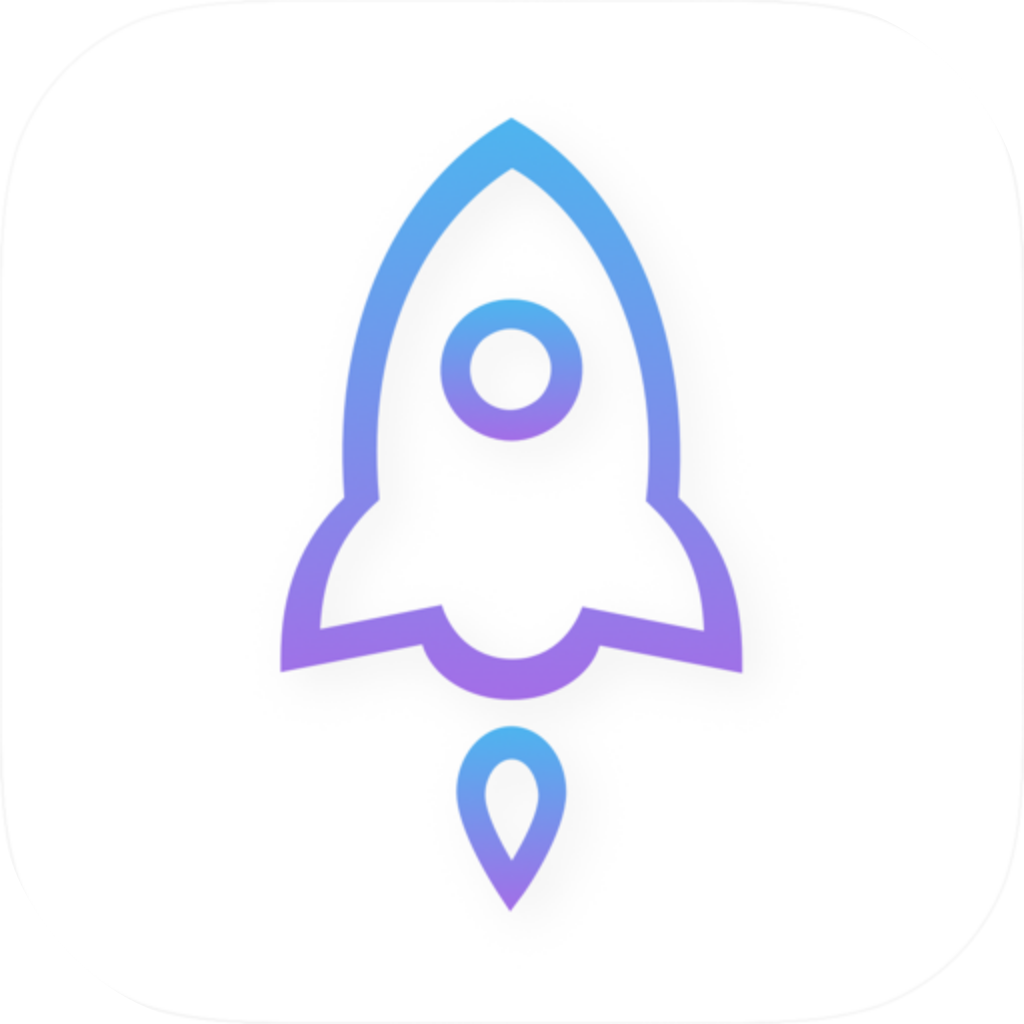
Official Shadowrocket icon: a blue-and-purple outlined rocket on a white background
Shadowrocket

Official App Store icon

  1. Developer: The product page should list Shadow Launch Technology Limited. Check the full name, not just a few letters in the search result snippet.
  2. App icon: Compare it with the official icon shown here: a blue-and-purple outlined rocket on a white background. Similar colors or names alone don’t confirm an app’s identity.
  3. App ID: The product page URL should include id932747118, which corresponds to app ID 932747118. The name in the URL is not enough to identify the app.

Search results may include apps with similar names or icons. Open each product page and check the developer and app ID. Don’t pay based only on a title containing “Shadowrocket” or a similar-looking icon. If any of the three details don’t match, return to the product page linked on this site and verify again.

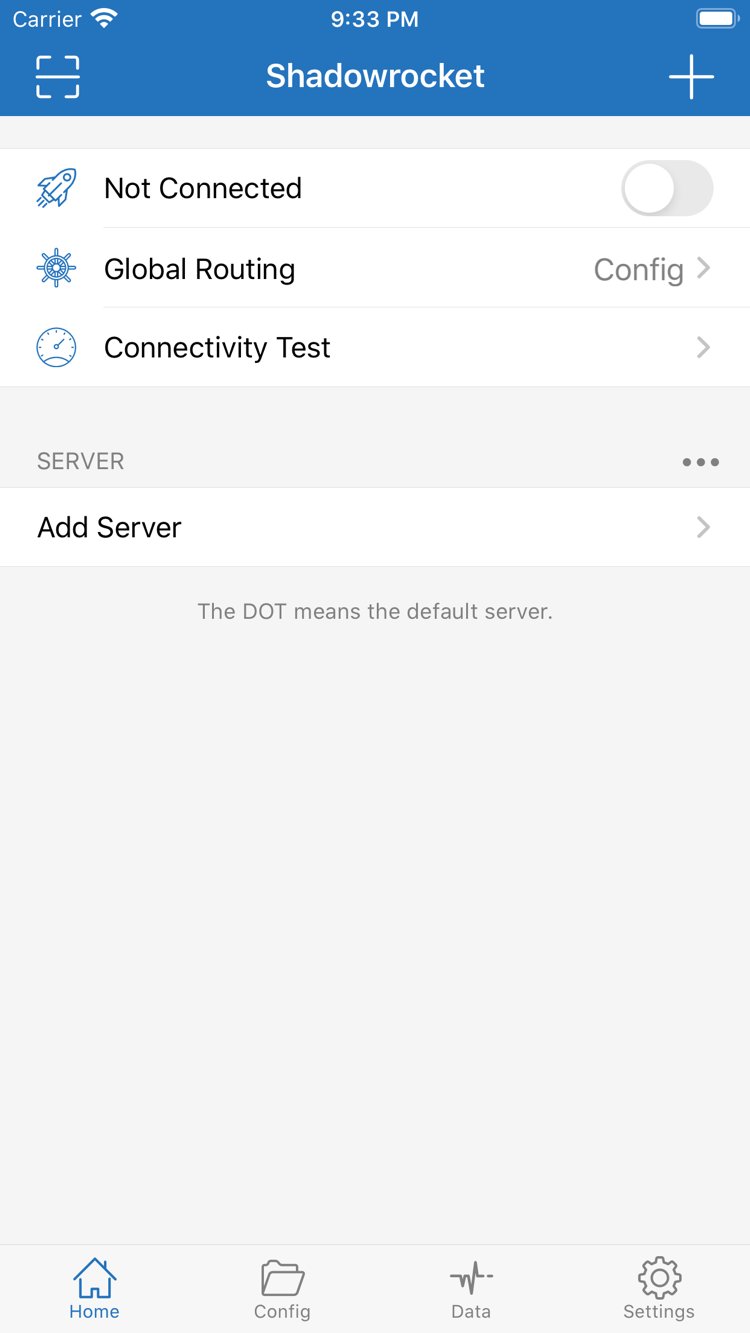
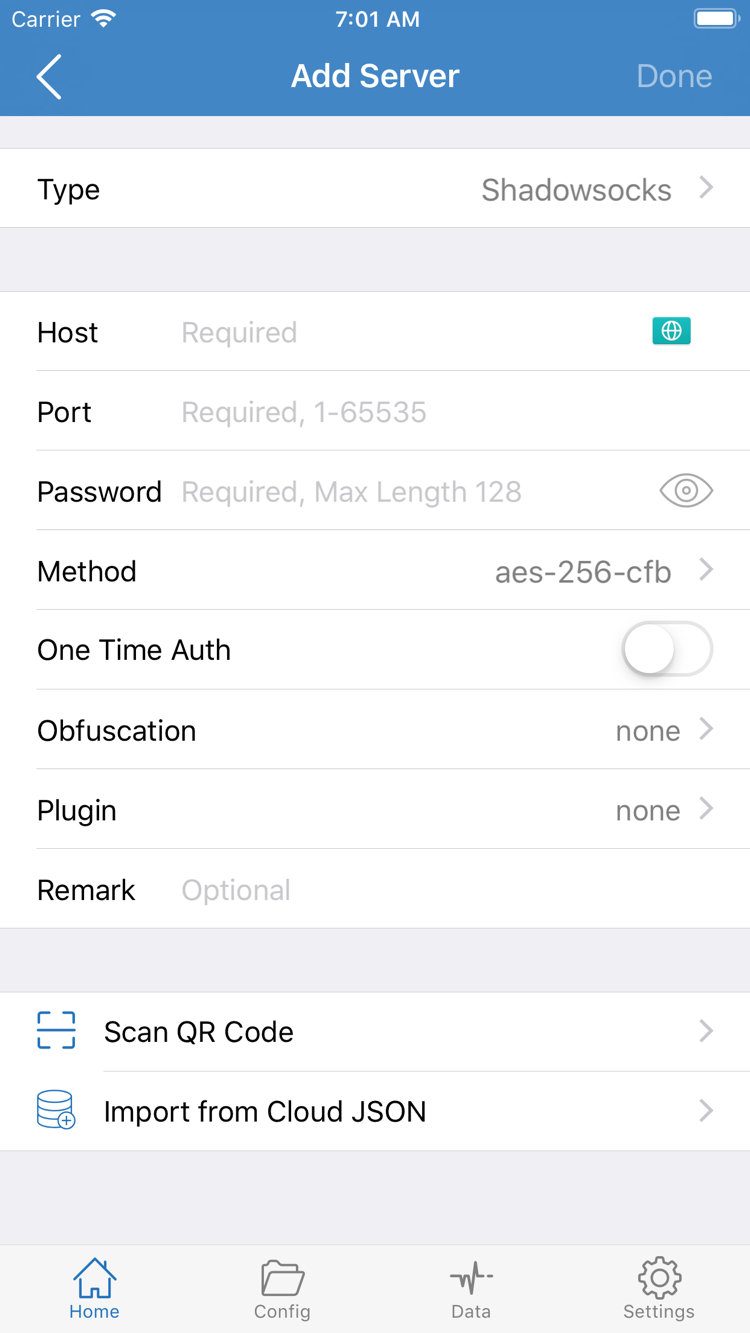
The screenshots on the right are the official Home and Add Server screenshots uploaded by the developer to the App Store. Use them to recognize key interface labels; they don’t show the current state of a specific device. The layout may change with app updates. Verify the app using the three App Store details instead.

In Home, Not Connected indicates the connection status; Global Routing lets you choose how traffic is handled. In Add Server, Type, Host, Port, Password and Method are server and connection settings. After installation, enter only details you already have and have verified.

Official Shadowrocket Home screenshot showing Not Connected, Global Routing, Connectivity Test, SERVER and Add Server
Home: Check the connection switch, Global Routing and SERVER groups.
Official Shadowrocket Add Server screenshot showing Type, Host, Port, Password, Method, Scan QR Code and Import from Cloud JSON
Add Server: Enter details for a server you already have, or choose an import method based on the information available to you.

Device guide / iPhone

Buy, install and authorize Shadowrocket on iPhone

On your iPhone, open the App Store product page and check the system requirements under Compatibility. Then confirm the current price and purchasing account. Refer to the App Store listing for system requirements, not system versions mentioned in older guides. Being able to open the product page does not necessarily mean your device meets the installation requirements.

  1. Verify and purchase. Confirm that the developer, icon and app ID match, then tap the price button shown in the App Store and follow the prompts to complete the purchase. If payment is still pending, resolve the payment or account prompt first; don’t assume the app is installed while the transaction is processing.
  2. Wait for installation to finish. Open Shadowrocket when the App Store button changes to Open. If the app icon is still pending, check your network connection and available storage. Follow the App Store message for the specific reason if installation fails.
  3. Prepare your existing configuration. When you first open the app, start by familiarizing yourself with Home, Add Server and Settings. If you already have a subscription or server details, import them according to their format. Buying the app does not automatically provide a server.
  4. Understand connection authorization. The first time you enable a connection, the system may ask to add a VPN configuration. Make sure the prompt was triggered by your action, then follow the system instructions to authorize it and verify your device identity.

Adding a VPN configuration is a system permission step that allows the app to manage related network connections. It is not another app purchase and does not confirm that your server is working. You’ll still need valid server details and routing settings. If you previously declined the prompt, try connecting again from the app and check the relevant entry under Settings → General → VPN & Device Management.

If you’ve completed the purchase but can’t connect, distinguish between “app installed” and “server configured.” The App Store handles the first; the second depends on information you already have. Continue with the getting started guide for importing an existing subscription, choosing Config mode in Global Routing and checking your first connection.

Device guide / iPad

Use the same purchase on iPad

Shadowrocket is available for both iPhone and iPad. If you bought it on iPhone, first confirm the same Apple ID under Media & Purchases on your iPad, then look for Shadowrocket in the App Store account’s Purchased section. Refer to the App Store listing for device compatibility, system requirements and whether universal purchase applies.

If the iPad product page shows a price, don’t assume you need to buy the app again. Check that you’re signed in with the original purchasing account, that the app appears in your purchase history and that the storefront matches your account. Restoring purchase access and syncing app configuration are separate: an empty list after reinstalling does not mean the purchase record is missing.

  1. Open the App Store on iPad, go to your account and find Purchased. Depending on the system version, this section may be called Apps or My Apps.
  2. Find Shadowrocket and download it again. If it isn’t listed, check the original purchase in your account history rather than relying only on search results on the App Store home page.
  3. After installation, import your own subscription or server details. If you have a backup, check its contents before restoring the settings you need.

The wider landscape layout on iPad may arrange lists, details and editing areas differently from iPhone. Use interface labels such as Home, Config and Settings to find your way; there’s no need to match a phone screenshot pixel for pixel. The meaning of server settings is unchanged by the wider layout, so check fields such as Type, Host and Port before entering values.

Purchased apps / New device and reinstall

Restore the app and configuration separately

After switching devices or reinstalling, use the Apple ID from the original purchase to redownload Shadowrocket from the App Store’s Purchased section. You usually won’t need to pay again. Purchase access is tied to the purchasing account, not to an app icon on your old device. Before you start, check the account used for Media & Purchases—not just the iCloud account shown at the top of Settings.

  1. Open your purchased apps. Go to App Store → Account → Purchased and search your purchase history for Shadowrocket. Depending on the system version, the section may be under Apps or My Apps; use the label shown on your account page.
  2. Check the purchase record. If a redownload icon appears, tap it and wait for installation to finish. If the app still shows a price, check the original purchase, current account and hidden purchases before paying again.
  3. Import your details again. Once the app is open, import your existing subscription or server details. If you used an in-app sync or backup feature, check its status and contents before choosing how to restore them.
  4. Verify the connection again. Check the server in use, Global Routing mode and system VPN authorization. The network environment and permissions on a new device may differ from the old one, so verify them again after restoring.

The App Store’s Purchased section restores the app to your device; it does not guarantee that all in-app data will be restored. Whether manually added servers, configuration files and settings are retained depends on your previous device backup, app sync and restore method. If your old device still works, make sure important details are backed up before handling its data.

Subscription links and server credentials are sensitive information. Don’t include the full details in public screenshots, comments or log examples. If you need help troubleshooting an import, first redact identifying information from the address. If duplicate entries appear after restoring, identify which ones came from syncing and which were newly imported before deleting anything.

Check the App Store listing and your Family Sharing settings to see whether family sharing applies and which purchase benefits it includes. Don’t assume that the redownload process for the purchasing account also applies to another family member’s account. Check purchase history and payment issues in the App Store account; in-app connection settings cannot restore App Store purchase access.

Pricing

One-time purchase vs. connection services

The US price is approximately $2.99 as a one-time purchase. Prices appear in local currency on other storefronts; check the App Store purchase page for the final price.

What the app purchase covers

Shadowrocket is a closed-source commercial app sold as a one-time purchase, with no monthly app fee. Before paying, check the price and currency shown in your storefront and on the system confirmation screen. Prices in other storefronts may differ from your bill. The purchase page shows the current price.

App updates after purchase are delivered through the App Store. Check the Updates section of your store account, or use automatic updates if enabled in your device settings. Review the current App Store listing to see what’s changed and whether an update is needed or your system meets the requirements.

Buying the client ≠ buying a connection plan

Purchasing the app gives you the right to use the client; it does not automatically provide a server or connection service. To continue with setup, you must already have your own subscription or server details. Treat the app price and the terms of any existing service separately.

This site does not provide, sell or recommend servers or subscriptions. The official manual explains how to verify the purchase page, import existing details and understand settings. Check whether your details are valid and the server is reachable after importing them.

Troubleshoot payment and connection issues separately. An App Store purchase confirmation means the app transaction was processed; it does not mean server details are configured correctly. Conversely, a failed connection test does not mean you need to buy the client again. First identify whether the issue is with the store transaction, app permissions, importing details or the connection, then read the relevant instructions.

Purchase and installation FAQ

Common questions before and after downloading

Why can’t I find Shadowrocket on the China mainland App Store?

The app is currently unavailable in the China mainland store. App Store listings depend on the country or region of the Apple ID used for Media & Purchases, not the device language. Check Settings → Apple ID → Media & Purchases → View Account → Country/Region. Review the conditions shown by the system before making any changes.

Why can’t I finish downloading after opening the product page?

Check the specific App Store message, then verify your account’s store region, device compatibility, payment status, available storage and network connection. Refer to the App Store listing for system requirements. If you’ve already purchased the app, check your account’s purchase history before paying again.

Do I need to buy Shadowrocket again after switching iPhones?

Sign in with the Apple ID used for the original purchase, then find Shadowrocket under App Store → Account → Purchased and download it again. You usually won’t need to pay again. If a price appears, check the account and purchase history first. Reinstalling the app does not restore its in-app settings; you’ll still need to import your own subscription or server details.

Can I use Shadowrocket on iPad if I bought it on iPhone?

The app is available for both iPhone and iPad. With the same Apple ID, you can redownload it from the Purchased section of the App Store on your iPad. Check the App Store listing for device compatibility, system requirements and whether universal purchase applies. Lists and editing areas may be arranged differently in landscape on iPad than on iPhone.

Can I install Shadowrocket on Mac, Apple TV or Apple Vision?

The compatibility section of the same App Store product page lists Mac, Apple TV and Apple Vision. Check the listing on your target device. Refer to the App Store page for universal purchase availability, device compatibility and system requirements. The App Store remains the place to get the app.

Which English interface labels should I learn first?

Start with Home, Add Server, Global Routing and Settings. The official screenshots show the English interface, so this manual keeps those labels in English and explains them in Chinese. The interface language does not verify that an app is genuine; check the developer, official icon and app ID.

After verifying your purchase, continue with the guide to importing an existing subscription and making your first connection →